
ProPal should have
Administrator permissions in order to work well in your server. Some features may not work if ProPal does NOT have the required permissions.1
Step 1 - Preparation
Before you can invite the ProPal discord bot to your server, you’ll need to be the owner of the server or have the
Manage Server permission enabled on your role.2
Step 2 - Inviting the Bot
To invite the bot to your server, use the following URL or just click here
3
Step 3 - Selecting the Server
After accessing the URL, you’ll be prompted to select the server you want to add the ProPal bot to. Choose the server you want to add the bot to, and then click the 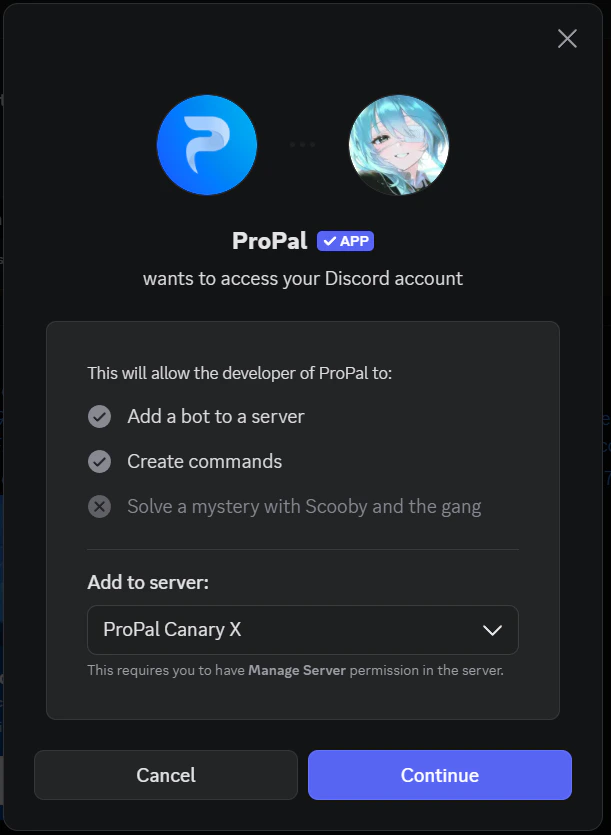
Authorize button.4
Step 4 - Finalizing the Invitation
Once you’ve authorized the bot, it will be added to your Discord server. You can start using the ProPal bot right away by typing the appropriate commands in the server.
5
Step 5 - Managing Bot Permissions
If you need to adjust the bot’s permissions, you can do so by navigating to the
Server Settings section of your Discord server, selecting the Roles tab, and then selecting the bot’s role. From there, you can adjust the bot’s permissions as desired.